Introduction
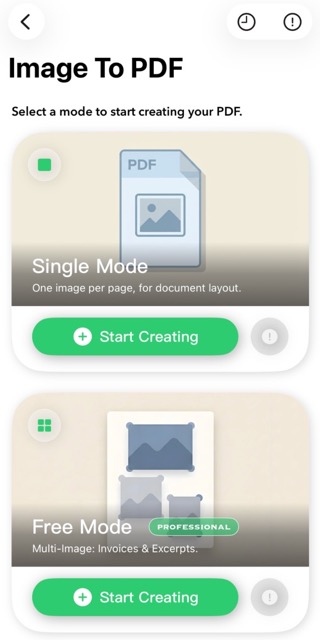
Convert images to PDF files using one of two modes. Single Mode allows only one image per PDF page, while Free Mode supports multiple images per page. Both modes support customization of page size, orientation, margins, headers, footers, watermarks, backgrounds, and encryption.
1. Access
From the "Image to PDF" homepage, select your preferred mode to enter the page editor.
2. Edit Pages
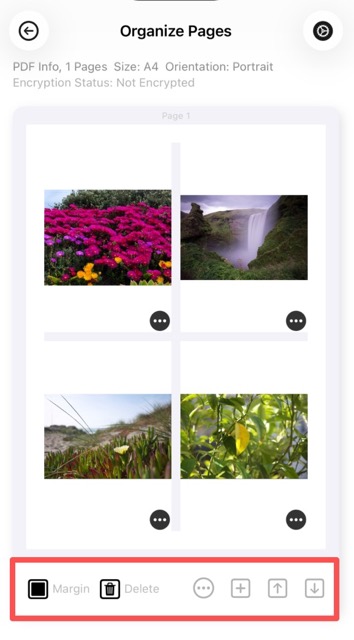
Upon entering the editor, a PDF page is automatically generated. Select one or more images from your device to populate the page. Use page settings to sort, add, or delete pages as needed.
3. Edit Images
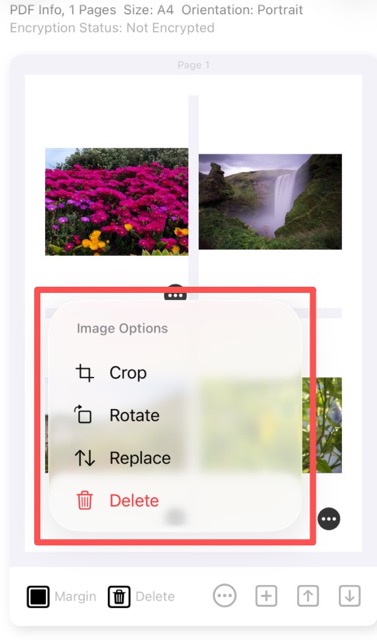
Select any image on the page to rotate, crop, replace, or apply other edits.
4. Page Settings
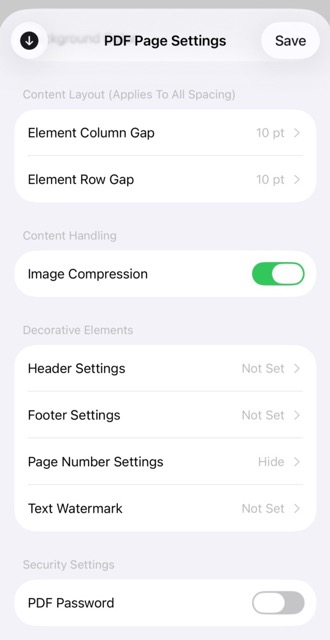
Click the settings button in the upper right corner to configure PDF properties. Options include layout mode, page size, orientation, margins, headers, footers, watermarks, and backgrounds. PDF encryption is also available.
5. Preview
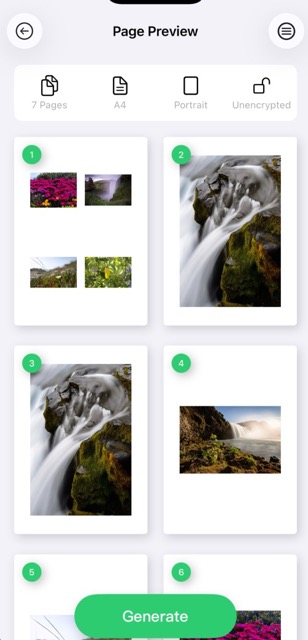
Click the "Preview" button in the bottom action panel to review the PDF output, including paper size, encryption status, and page count information.
6. Generate
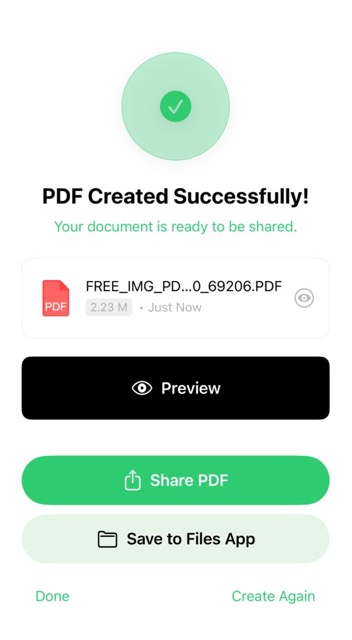
Click the "Generate" button in the bottom action panel to create your PDF. Upon successful generation, file details including size and filename will be displayed. From this screen, you can preview, share, or download the PDF file.
Note: All source images and generated PDF files are stored locally on your device and are never uploaded to any server, ensuring complete privacy and security.