Introduction

Smart Receipt Recognition helps turn receipt, contract, menu, whiteboard, and document photos into readable, searchable, and shareable material. It can detect and crop the document area, improve image clarity with AI, recognize text, translate content, and organize the result into a cleaner structure for copying, exporting, or sharing.
1. Import or Scan a Document

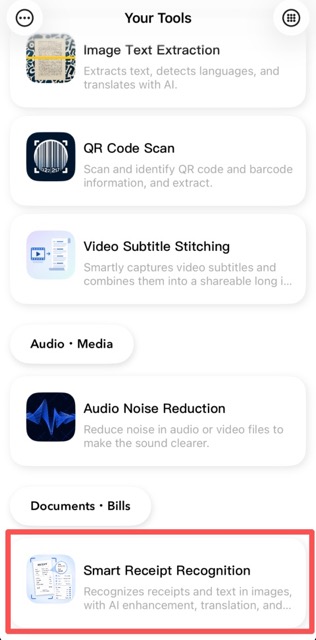
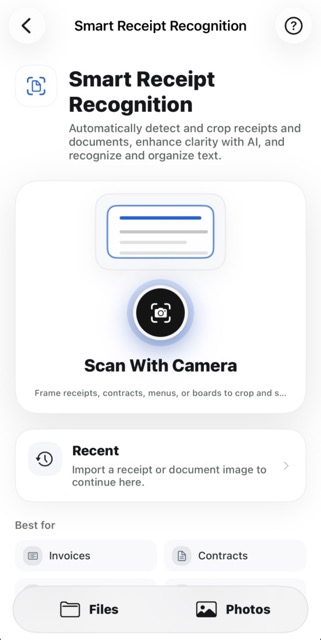
Open Smart Receipt Recognition from Your Tools, then choose a file, import a photo, or scan with the camera. The home page is designed around quick capture while keeping recent items and common use cases easy to reach.

Your Tools - Smart Receipt Recognition home page and import options

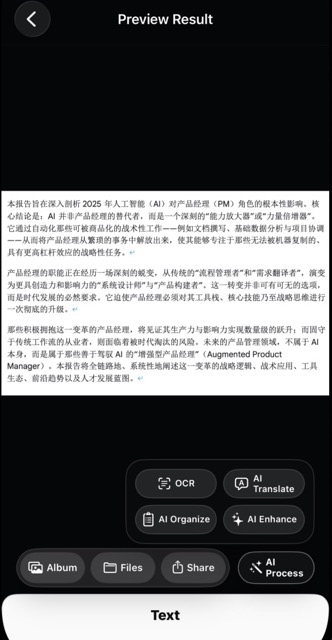
2. Preview, Process, and Export

After cropping, the result preview keeps the document front and center. You can save the image to Photos, export it to Files, share it with other apps, or use AI Process for OCR, AI translation, AI organization, and AI clarity enhancement. The app keeps local preview and interaction smooth while advanced processing is triggered only when you need it.

Your Tools - Preview result with OCR translate organize and AI enhance actions

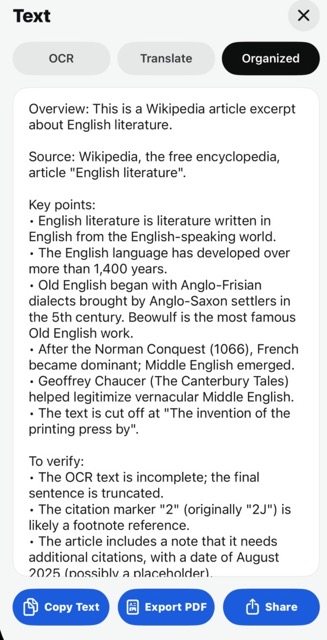
3. Read and Organize Text

The text workspace groups OCR, translation, and organized results in one place. OCR extracts the visible text, AI translation converts it into the current app language, and AI organization restructures the content into summaries, key points, and items to verify. You can copy the text, export it as PDF, or share OCR and AI results together.

Your Tools - OCR translation and organized and AI Your Tools - OCR translation and organized text result panel

When You'll Need This

Frequently Asked Questions

OCR languages?

Wide range supported.

Export PDF?

Yes.

Other documents?

Contracts, menus, whiteboards all work.

Download Your Tools on the App Store