Introduction
Video Subtitle Stitching helps turn subtitles from local videos into one long image. The tool extracts frames from your selected video, uses on-device machine learning to recognize subtitle text, automatically filters frames without subtitles and duplicate subtitle content, and lets you review, crop, export, save, and share the final stitched image.
1. Select a Local Video
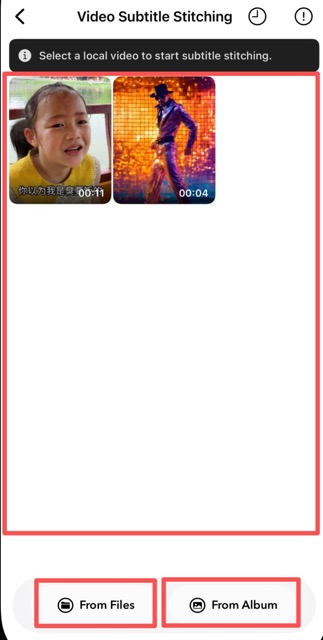
Open "Video Subtitle Stitching" and choose a local video from the Files app or from your video album. Online videos are not supported; the feature only processes videos already available on your device.
2. Analyze Subtitles
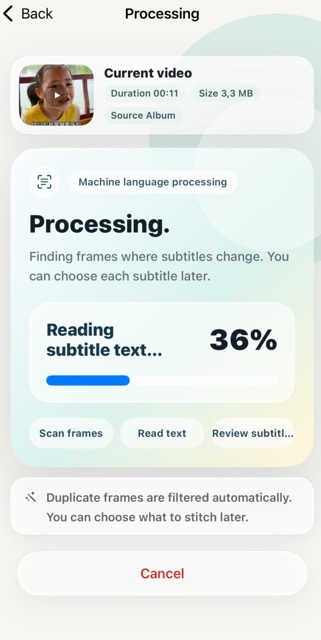
After the video is selected, the app extracts video frames and uses machine learning text recognition to detect subtitles in each frame. Duplicate subtitle frames and frames without subtitle text are automatically filtered to reduce repeated content.
3. Review Subtitle Images
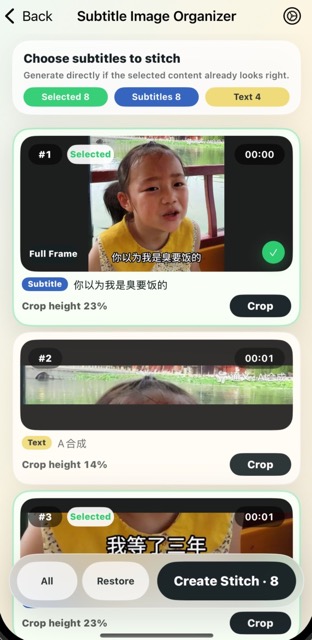
Recognized subtitle images are shown in a review list. The app will recommend which items are likely real subtitles and which may be ordinary text from the video, but you can still choose, cancel, or restore the recommended selection at any time.
4. Adjust Subtitle Area
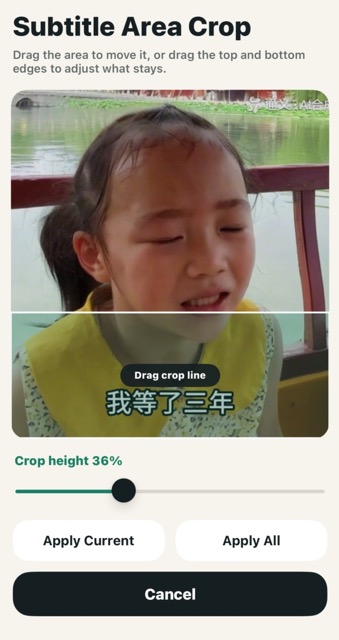
If the default subtitle crop is not accurate, open the crop editor to adjust the subtitle area. You can drag the region, change the top and bottom crop boundaries, and apply the adjustment to the current subtitle or to all subtitle images.
5. Output Settings
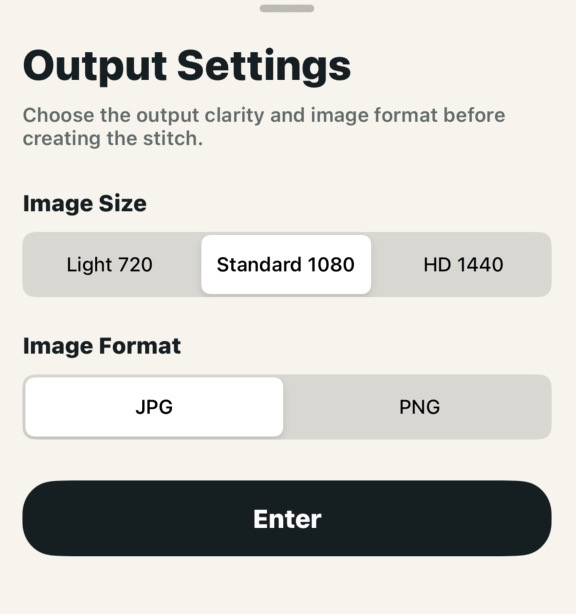
Use the settings button to choose the output image width and image format. A lighter width is suitable for quick sharing, while a larger width keeps more subtitle detail. JPG is recommended for smaller files, and PNG is available when higher lossless quality is needed.
6. Generate and Share
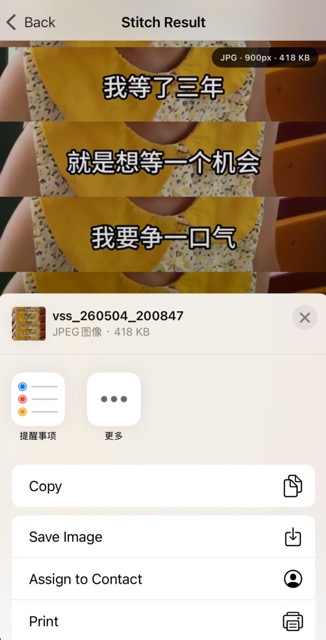
Tap the generate button to create the final long image. The first selected frame is kept as a full image, and the following subtitle areas are stitched below it. After generation, you can preview, zoom, save to Photos, save to Files, or share the image to social media and other apps.
Note: The selected video, extracted frames, recognized subtitles, and generated image are processed locally on your device.